How do I convert a PDF to Word step by step?
Learn how to easily and clearly convert a PDF file to Word using effective and accessible methods. We'll guide you step by step so you can edit your document…
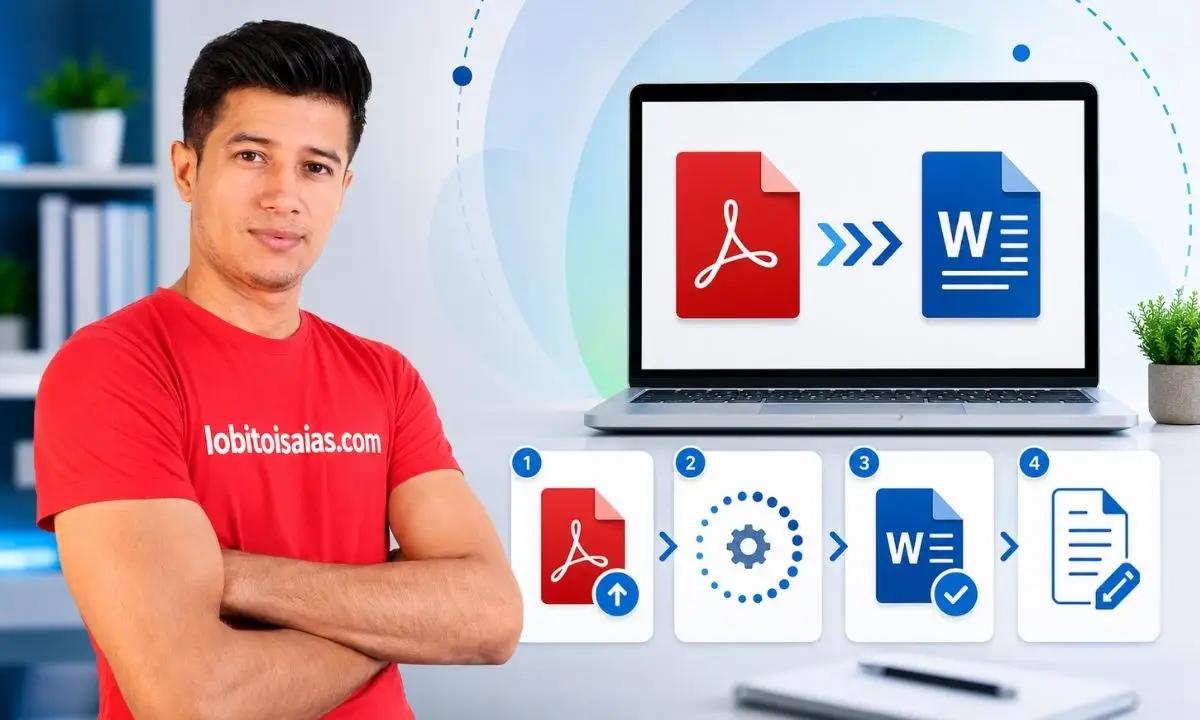
Converting a PDF file to Word is a common task when you need to edit the content of a document that was originally in PDF format. The good news is that there are several easy and accessible ways to do it, whether using programs on your computer or free online tools. In this guide, I'll explain how to convert a PDF to Word step by step, so you can do it yourself without any problems.
What does converting a PDF to Word mean, and why is it useful?
A PDF (Portable Document Format) file is designed to display documents in a fixed format, preventing easy modification. This is ideal for preserving the original design and formatting, but it can be problematic if you want to edit the text, images, or tables in the document. Therefore, converting a PDF to Word involves transforming that file into an editable document, usually in .doc or .docx format, which you can open and modify with programs like Microsoft Word or Google Docs.
This conversion is useful for:
- Edit the content of a report, contract, or any document.
- Extract text or images for reuse.
- Correct errors or update information without redoing the entire document.
How do I convert a PDF to Word step by step using Microsoft Word?
If you have Microsoft Word installed on your computer, you can convert PDF files to Word directly with this application, without the need for additional programs.
Steps to convert PDF to Word with Microsoft Word
- Open Microsoft Word on your computer.
- Go to File > Open and select the PDF file you want to convert.
- Word will display a message indicating that it will convert the PDF to an editable document. Click OK to continue.
- Wait a few seconds while Word processes the file. Then you'll see the PDF content in a new Word document.
- Review the document to adjust the formatting or elements that may have changed during the conversion.
- Save the file as a Word document: go to File > Save As and choose .doc or .docx format.
Please note that the conversion quality will depend on the design of the original PDF. Documents with many images, complex tables, or special fonts may require manual adjustments.
How do I convert a PDF to Word step by step using online tools?
If you don't have Microsoft Word or prefer a quick, installation-free option, there are many websites that allow you to convert PDFs to Word for free.
Steps to convert PDF to Word using online tools
- Access a reliable website to convert PDF to Word, such as Smallpdf, iLovePDF, or PDF2DOC.
- On the page, look for the option to upload your PDF file. There's usually a button that says Select file or Upload PDF.
- Select the PDF file from your computer.
- The tool will process the file and show you a button to download the converted Word file.
- Download the file and open it in your preferred text editor to review and edit it.
Make sure to use trusted sites to protect the privacy of your documents, especially if they contain sensitive information.
What alternatives do I have to convert PDF to Word without losing formatting?
Besides Microsoft Word and online tools, there are other methods and programs you can use to convert PDFs to Word while preserving the design:
- Adobe Acrobat Pro DC: This professional application allows you to convert PDF to Word with high accuracy and advanced options for handling complex documents.
- Google Drive and Google Docs: Upload the PDF file to Google Drive, open it with Google Docs, and then download it as a Word document. This option is free and accessible from any device with internet access.
- Specialized programs: there is specific software for PDF conversion, such as Nitro PDF, Wondershare PDFElement or UniPDF, which offer additional options for bulk conversions or advanced settings.
Common mistakes when converting PDF to Word and how to avoid them
Converting PDF to Word may seem simple, but sometimes problems arise that are worth knowing about to avoid them:
- Loss of formatting: misaligned text, misplaced images, or changed fonts. This often occurs in PDFs with complex layouts. To avoid this, choose reputable conversion programs or tools.
- Very large Word file: Documents with many converted images can increase the file size. Optimize the images or remove unnecessary elements.
- Corrupted or unreadable files: If the PDF is protected or damaged, the conversion may fail. Verify that the file is in good condition and password-protected.
- Language or special character problems: Make sure the tool supports the document language and special characters to avoid errors in the text.
How do I choose the best option to convert PDF to Word according to my needs?
It depends on several factors:
- If you're looking for speed and don't need to edit the document much, an online tool might be enough.
- If you have Microsoft Word installed and the PDF is not very complex, using Word to convert it is practical and safe.
- For documents with advanced formatting, Adobe Acrobat Pro or specialized programs offer better results.
- If you prefer not to install programs, Google Docs is a free and accessible alternative.
Evaluate the number of documents, the complexity, and the privacy of the files to choose the most appropriate option.
Frequently Asked Questions
Can I convert a scanned PDF to Word?
Yes, but you'll need OCR (Optical Character Recognition) software to convert text images into editable text. Adobe Acrobat Pro and some online tools offer this feature.
Does converting PDF to Word always preserve the original formatting?
Not always. Conversion can alter the layout, especially in documents with many images or complex formats. It's recommended to review and adjust manually after converting.
Is it safe to convert PDF documents online?
It depends on the website. Use reputable platforms that ensure privacy and delete files after conversion to protect your information.
Can I convert a password-protected PDF to Word?
Only if you know the password and enter it to unlock the file before conversion. Using tools to remove passwords without permission is not recommended.
How do I convert a PDF to Word without losing images?
Tools like Adobe Acrobat Pro or Microsoft Word preserve the images during conversion, although sometimes it is necessary to adjust them manually to ensure they are properly positioned.
Converting a PDF to Word is an accessible and useful task that allows you to easily edit and reuse documents. By following these steps and tips, you can do it safely and efficiently according to your needs. Start converting your files now and simplify your daily work!