What to do if your Android keyboard suddenly disappears and won't let you type
Discover why your Android keyboard might unexpectedly disappear and how to easily fix it so you can type smoothly again.
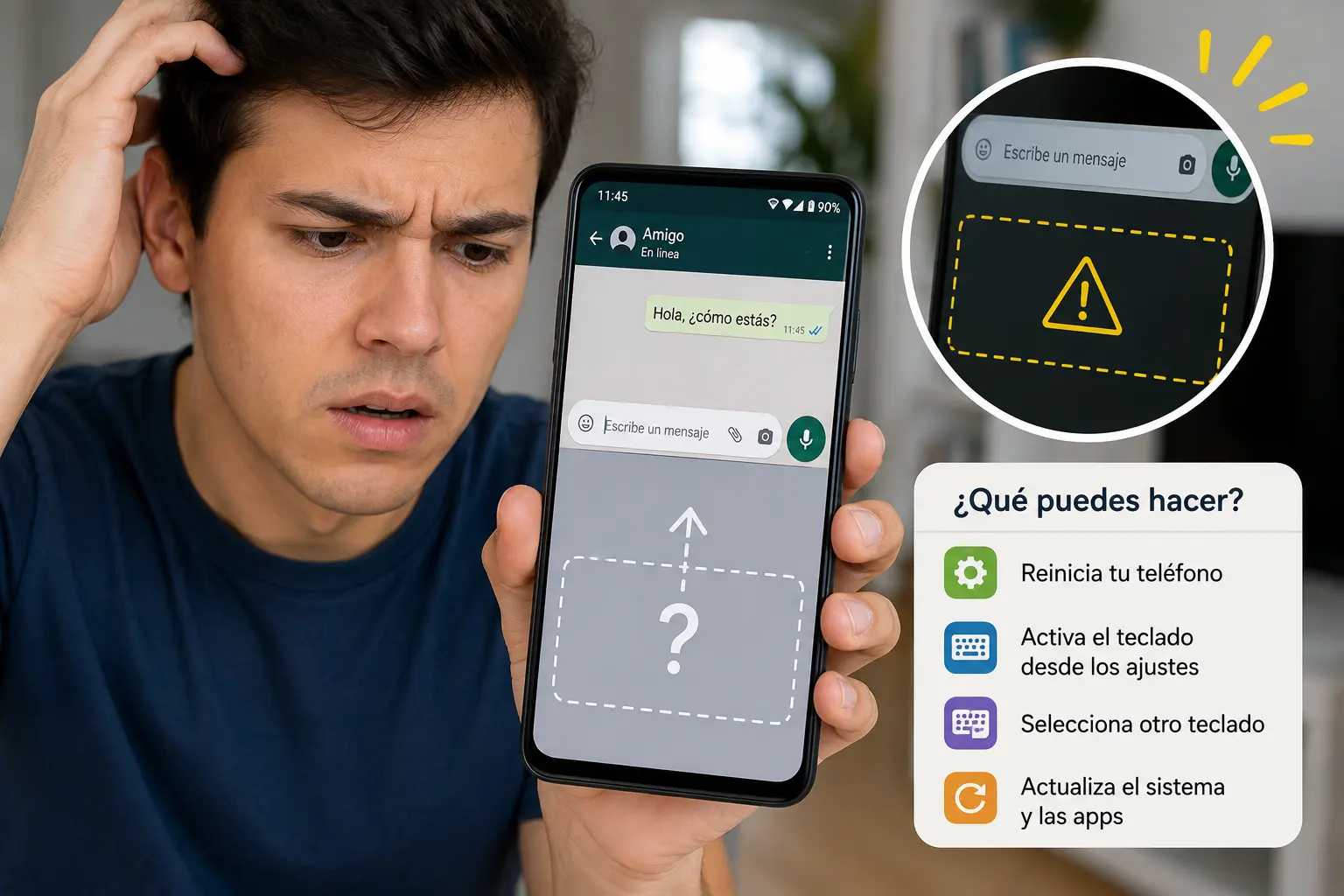
If you've ever experienced your Android keyboard disappearing without warning and being unable to type, you're not alone. This problem can be frustrating and stop any task you're doing on your phone. Fortunately, there are several simple solutions you can try to get your keyboard back and continue using your device normally.
Why does your Android keyboard disappear and prevent you from typing?
Before looking at the solutions, it's helpful to understand the common causes of this problem. The keyboard may not appear for several reasons:
- Temporary system errors: Sometimes Android experiences momentary failures that affect the keyboard.
- Incomplete or failed updates: A recent keyboard or system update may cause conflicts.
- Keyboard app problems: If you're using a third-party keyboard, there may be errors in that app.
- Incorrect configuration or accidental changes: The default keyboard may have been changed or disabled.
- Lack of memory or resources: If the system is overloaded, the keyboard may fail to open.
How to show the keyboard again on Android step by step
Here's a clear guide to solving the problem and getting the keyboard to reappear:
1. Restart your Android phone
Often, a simple restart fixes temporary system errors. Turn your phone off and on again, and try opening an app that requires the keyboard.
2. Verify that the keyboard is turned on
Go to Settings > System > Languages & input > On-screen keyboard. Make sure the keyboard you're using is selected and active. If not, enable it or select another available keyboard.
3. Force stop and clear keyboard cache
If you're using the default keyboard (for example, Gboard), go to Settings > Apps > Gboard (or your keyboard), and tap "Force stop". Then, go to "Storage" and select "Clear cache". This removes temporary files that might be causing the problem.
4. Update or reinstall the keyboard
Check Google Play for available updates for your keyboard. If the problem persists, uninstall the updates or the app and reinstall it. This may fix errors caused by faulty updates.
5. Temporarily switch to another keyboard
To rule out that the problem is specific to the keyboard you're using, install another keyboard from Google Play, such as SwiftKey or any other, and set it as your default. If the new keyboard works, the problem is with your original keyboard.
6. Reset application preferences
In some cases, resetting preferences can help. Go to Settings > Apps > Menu (three dots) > Reset preferences. This won't delete data, but it will restore default settings that may be affecting the keyboard.
7. Review permissions and access
Confirm that the keyboard has the necessary permissions to function. In Settings > Apps > Keyboard > Permissions, enable the permissions required for proper operation.
8. Free up space and memory
A phone with limited memory or storage may experience problems with apps like the keyboard. Deleting unnecessary files, closing background apps, and restarting your device can improve performance.
9. Update the Android operating system
An outdated or buggy version can cause keyboard problems. Go to Settings > System > Updates and check for any pending updates.
10. Use the physical keyboard or connect an external keyboard
If you have a physical keyboard connected via USB or Bluetooth, check that it's not interfering. Sometimes the system prioritizes the physical keyboard and doesn't display the virtual one. Disconnect it and try again.
What to do if no solution works
If after trying all these options the keyboard still does not appear, consider the following alternatives:
- Resetting the device to factory settings: This erases all data and settings. It's the last resort because it's the most drastic, but it often resolves serious system problems.
- Contact technical support: It may be a model or software-specific problem that requires specialized assistance.
How to prevent the keyboard from disappearing in the future
To prevent this problem, we recommend:
- Keep the system and keyboard always up to date.
- Avoid installing untrusted keyboards or apps of dubious origin.
- Free up space and close applications you don't use.
- Restart your mobile phone periodically to keep it stable.
Frequently Asked Questions
Why doesn't my Android keyboard appear when I tap a text field?
This could be due to a temporary glitch, problems with the keyboard app, or the default keyboard being disabled. Try restarting your phone, enabling the keyboard in settings, or switching to a different keyboard.
How can I change the default keyboard on Android?
Go to Settings > System > Languages & input > On-screen keyboard and select the keyboard you want to use as default.
Is it safe to use third-party keyboards on Android?
Yes, as long as you download them from Google Play and they're from trusted developers. Some keyboards offer extra features, but check the permissions they request.
What to do if the keyboard appears but does not respond to touch?
Try restarting the app or your phone, clearing the keyboard cache, or reinstalling the app. Sometimes memory issues or temporary errors affect responsiveness.
Can a physical keyboard prevent the virtual keyboard from appearing?
Yes, when a physical keyboard is connected, Android may automatically disable the on-screen keyboard. Disconnect it to make the virtual keyboard reappear.
If your Android keyboard disappears, don't be left without typing: follow these steps to regain control of your device. For more tips on optimizing your phone and troubleshooting common problems, check out our specialized guides on the blog.